


HP Print Service Plugin
4.1356.52K Reviews
App Specs
- Version
- 23.2.6.3182
- Updated On
- License
- Free
- Downloads
- 1,000,000,000+
- Developer
- HP Inc.
- Categories
- Productivity
- Platform
- Android, iOS
Screenshots
 Analysis by AppCompare
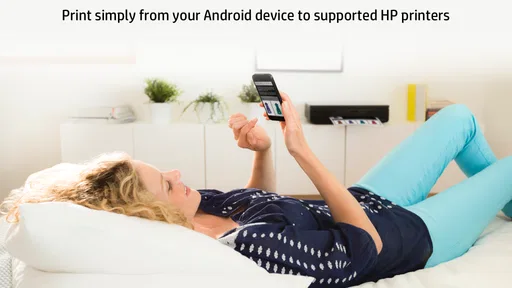
I often reach for mobile printing when a file is ready on my phone but the printer is across the room—or when sending it to a computer would take longer than printing it. That is the practical job of HP Print Service Plugin: it gives compatible HP printers a route to receive print requests from other apps. It is a focused productivity tool, not a place to create or organize documents, and that distinction sets the right expectation from the start.
When a phone is the starting point
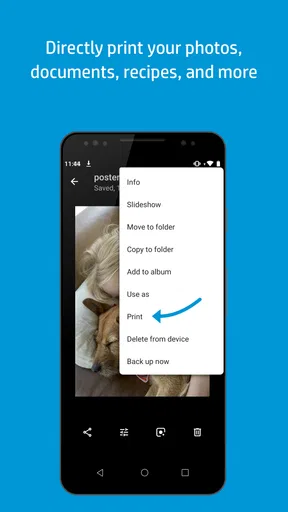
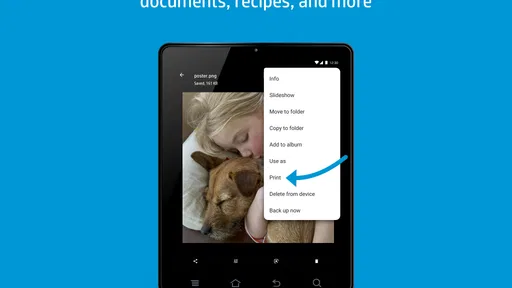
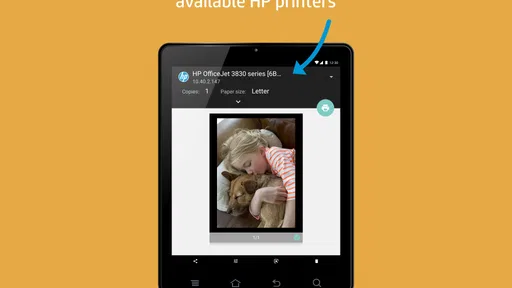
A useful example is a school form that arrives as a PDF in an email. I can open the attachment on my phone, choose its print option, pick a printer, check the page preview, and send it without first moving the file to a laptop. The plugin is most valuable in that handoff: it connects an app that holds the document with a printer that can put it on paper.
HP Inc. makes the plugin, which is free and rated for Everyone. It has a 4.1 average from around 3 million ratings and more than a billion installs, so it is a familiar utility rather than an all-in-one printing suite. I would consider it first if I already use an HP printer and want a straightforward way to print from Android. If you rarely print, or your printer is not compatible, the added service may have little practical value.
Getting Started with Ease
The first thing you’ll notice when you download the HP Print Service Plugin is how straightforward the setup is. No need for a degree in tech; just install, and you're almost there. Once you’ve got it on your device, it’s all about connecting to your printer. If you’ve got an HP printer that supports this plugin, you’re in for a treat.
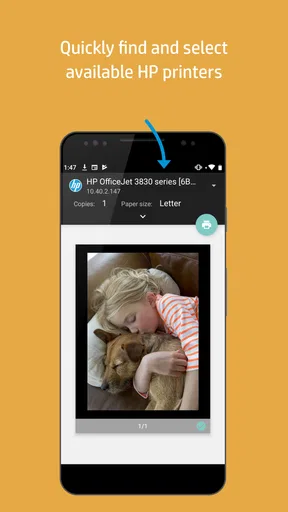
Just make sure your printer is on the same Wi-Fi network as your phone. The app automatically detects compatible printers, which means you can skip the whole manual pairing hassle. It's practically plug-and-play, or in this case, download-and-print.
From document to print job
For a smoother first try, I would check that the printer is awake, has paper, and is connected to the same Wi-Fi network as the phone before opening the document. Then I would use the print command in the app that currently holds the file. The plugin is a printing service, so the starting point is usually the document’s own app rather than a separate library inside the plugin.
That distinction also answers a common question: do you need to move files into HP software first? In the usual workflow, no. You start with a file in an app that offers printing, then select the available print service. If a particular app has no print command, sharing the file to another app that can print may be a practical workaround, though it adds a step and depends on what that app supports.
Worth Reading Before You Choose

Flipboard Shows What News Apps Must Do Beyond the Feed

Switching to Android Auto Means Rethinking Your Driving Routine

Google Calendar Makes a Crowded Week Easier to Manage

Ludo King Makes the Most of the Minutes Between Plans

Baby Panda World Brings Quick Play to Modern Phones, but Its Game Library Feels Busy

ESPN’s Live Game View Makes Following Close Games Easier
Print Options Galore
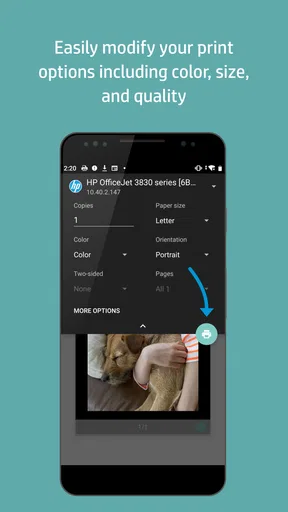
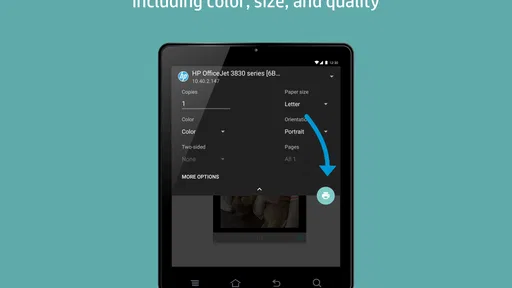
Now, onto the fun part—printing stuff! The app supports a wide range of file types, which is a huge plus. Whether it's photos, docs, emails, or PDFs, the HP Print Service Plugin handles them all like a champ. Just open the document you want to print, tap the share button, and select the HP plugin. You’ll get a neat preview and a bunch of settings to tweak if you like. Want double-sided printing? No problem. Need to change the paper size? Easy peasy.
And let’s talk about quality. The printouts are sharp, and the colors pop just right. It’s like having a mini professional print shop at your fingertips. Whether it's for work or personal projects, this app has got your back.
Small checks that prevent wasted paper
I would treat the preview as a real checkpoint, not a formality. A long email, a web page, or a document with a blank final page can turn into more paper than expected. Before sending, I would confirm the page range and orientation where those controls are available, then check that the selected paper size matches what is loaded in the printer. That quick pause is especially useful for forms, where a clipped edge can make an otherwise correct printout unusable.
For a photo or a document with color, it is worth deciding whether appearance or economy matters more before printing. A phone preview helps catch obvious framing problems, but it cannot guarantee that the physical result will look exactly like the screen. For a one-off reference copy, convenience may matter most; for a presentation or an important image, I would make a test print if the printer setup allows it and avoid assuming that every device handles color and margins identically.
Simple Yet Powerful Interface
The interface is clean and intuitive. Even if you’re not tech-savvy, navigating through the app feels like a breeze. It’s designed to be user-friendly, so you won’t find yourself lost in a sea of unnecessary features. Everything you need is just a tap away, making the whole experience smooth and stress-free.
One of the best parts? The app doesn't bombard you with ads or push unnecessary features, so you can just focus on getting your documents printed without any distractions.
Where the handoff can stall
Mobile printing involves several pieces working together: the document app, Android’s print controls, the service, the network, and the printer. If the printer does not appear, I would check the shared Wi-Fi connection and make sure it is ready before repeatedly tapping print. If a job seems stuck, checking the printer’s own display or job queue can help distinguish a phone-side issue from a printer that is busy or waiting for attention.
This is also where expectations matter. The plugin can pass a job along, but it cannot make an empty paper tray full or fix a disconnected printer. A job sent from a phone may feel less transparent than printing from a computer, where people are more used to checking a queue. I would send one small test page after changing networks or setting up a printer, rather than sending a large document and discovering a connection problem at the end.
Compatibility and Performance
Now, you might be wondering if it works with non-HP printers. Well, the app is specifically designed for HP printers, so for the best experience, it’s ideal to use it with compatible HP devices. However, some users have reported that it works with other brands too, but your mileage may vary.
Performance-wise, the app is pretty solid. It doesn’t slow down your phone, and the connection to the printer is swift and reliable. No more waiting around or failed prints. It’s efficiency at its finest.
Choosing the right printing route
Compared with transferring a file to a computer and printing from there, this service saves a handoff and is particularly convenient for a quick form, boarding document, or recipe already open on a phone. Compared with a printer maker’s broader companion app, a plugin-style service is narrower: it is there to make printing available from other apps, not to act as a general control center. If you need printer management or other device-specific tools, a fuller companion app may suit you better.
Android’s built-in printing options are another natural comparison. They can be a simpler choice if they already recognize your printer and offer the settings you need. I would choose this HP service when it is the dependable route for an HP printer in my home or workplace; I would not install multiple printing tools just in case, since having several possible services can make it less obvious which one to select.
Compatibility in everyday use
The app’s current version is 23.2.6.3179, and it runs on Android 6.0 or later. That makes it relevant to a broad range of Android devices, but the printer still needs to support the service for the workflow to work well. The version number alone does not tell me whether a particular printer model or phone setup will behave exactly as I expect, so I would check the printer’s own compatibility information before relying on it for a time-sensitive job.
It is also worth separating Android use from printing on another platform. This plugin is an Android service; if you are printing from an iPhone or iPad, you should use a route intended for Apple devices rather than assuming this installation will serve both. Likewise, if you mostly print from a desktop computer, the plugin is unlikely to change your routine enough to justify adding it.
Who gets the most from it
I see the strongest fit for people who regularly receive documents on Android and have access to a compatible HP printer: students printing a worksheet, someone handling a signed form, or a household member who wants a recipe on paper while cooking. It can also help in a shared home or small office where the printer is already on the network and people do not want to send every file through one computer.
The weaker fit is someone who prints only occasionally and already has an easy computer-based routine, or someone whose printer does not support this service. It is also not the right tool if your goal is to edit a PDF, manage files, or make a document look more polished; those jobs belong in the apps that create or edit the content. Keeping those roles separate makes the plugin easier to understand and avoids expecting it to solve problems outside printing.
Who Can Benefit?
If you’re someone who prints frequently from your phone, be it for work, school, or personal projects, this app is a game changer. It's also perfect for those who often find themselves needing quick printouts without the hassle of transferring files to a computer first.
And let’s not forget the environment. By reducing the need for physical storage and printing only what's necessary, you’re doing your bit for the planet too. It’s a win-win!
For me, the sensible habit is to use mobile printing when paper genuinely helps, not simply because the option is there. A digital copy is often easier to search and share, while a printed page is useful for signing, marking up, or keeping beside you during a task. The plugin removes some friction when paper is the better format, but choosing fewer pages and checking the preview still matters.
In conclusion, the HP Print Service Plugin is a nifty little tool that brings convenience and efficiency to mobile printing. It's got a lot going for it—ease of use, versatility, and reliability. So, if you’re looking to streamline your printing process straight from your phone, give this plugin a whirl. You might just wonder how you ever managed without it.
Pros
- Seamless integration with HP printers
- Supports a wide range of file types
- User-friendly interface
- Regular updates enhance compatibility
- No need for additional apps to print
Cons
- Limited to HP printers only
- Requires Wi-Fi or network connection
- Lacks advanced editing features
- May consume battery quickly
- Occasional connection drop issues
FAQs for HP Print Service Plugin
What is the HP Print Service Plugin and how does it work?
The HP Print Service Plugin is an app that allows Android devices to wirelessly print documents, photos, and web pages to HP printers. It integrates seamlessly with your device, enabling easy access from apps with a print option. It does not require additional drivers or software, offering a straightforward setup for printing tasks.
Is the HP Print Service Plugin compatible with all HP printers?
The HP Print Service Plugin is designed to work with most HP printers, but compatibility may vary depending on the printer model. It supports a wide range of HP printers, including inkjet, LaserJet, and multifunction printers. For the best experience, ensure your printer is connected to the same Wi-Fi network as your Android device.
Do I need an internet connection to use the HP Print Service Plugin?
While an internet connection is not strictly necessary, your Android device and HP printer must be connected to the same Wi-Fi network for the plugin to function properly. The plugin facilitates direct communication between the device and printer, allowing for seamless printing without the need for internet access.
How do I set up and configure the HP Print Service Plugin on my device?
To set up the HP Print Service Plugin, download and install it from the Google Play Store. Once installed, enable the plugin in your device’s settings under ‘Printing.’ The app will automatically detect compatible printers on the same Wi-Fi network, allowing you to print directly from supported apps.
What are the main benefits of using the HP Print Service Plugin?
The HP Print Service Plugin offers several benefits, including ease of use, compatibility with a wide range of HP printers, and the ability to print directly from Android devices without the need for additional drivers. It simplifies the printing process, making it accessible for users who require quick and efficient printing solutions.


